


Trigger.dev v4 is a powerful open-source background jobs and workflow automation platform designed for modern development teams. With its latest v4 release, Trigger.dev brings improved reliability, better developer experience, and a host of new features that make it easier than ever to automate your workflows. Read more about the v4 Beta Launch here.
In this guide, you’ll learn how to deploy Trigger.dev v4 on Coolify, a popular open-source PaaS that simplifies self-hosting applications. Let’s get started!
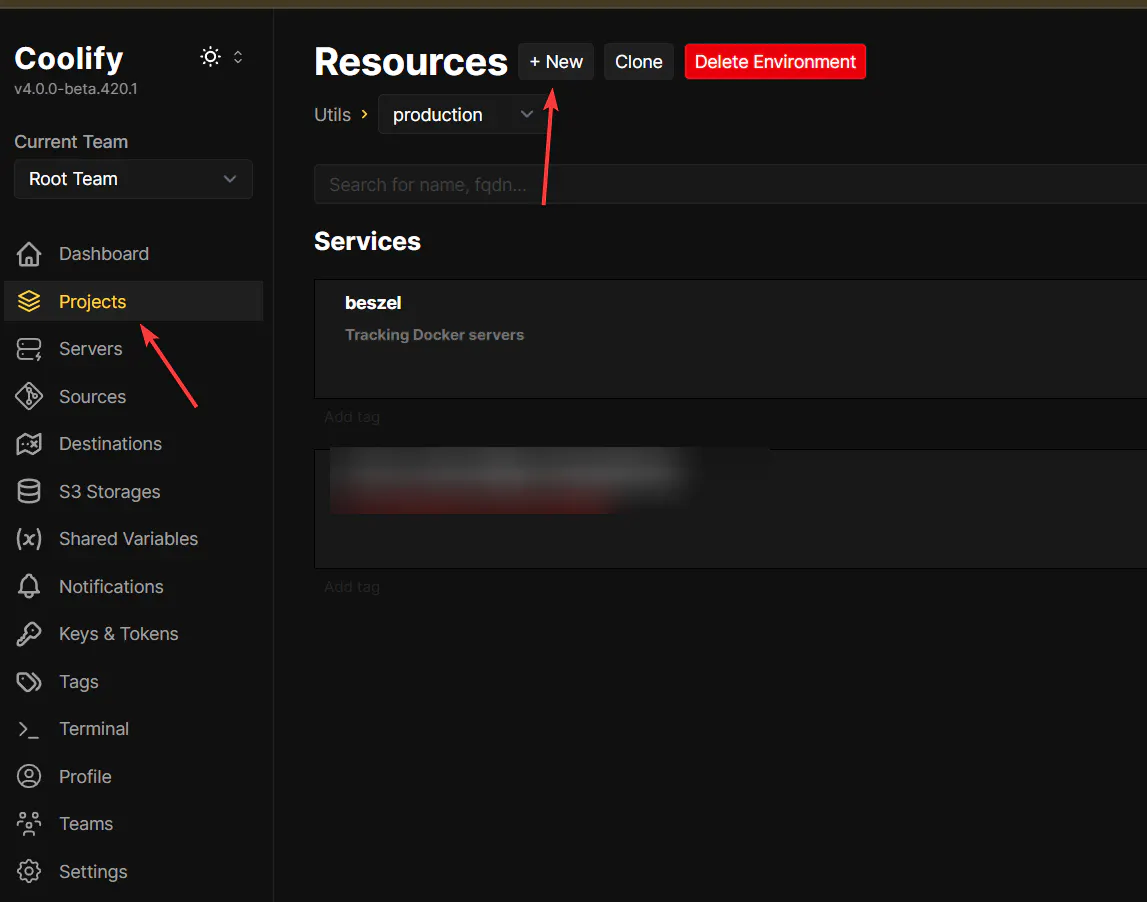
Go to your Coolify dashboard and select “Projects.”
Create a new resource:
Click on “Add Resource”
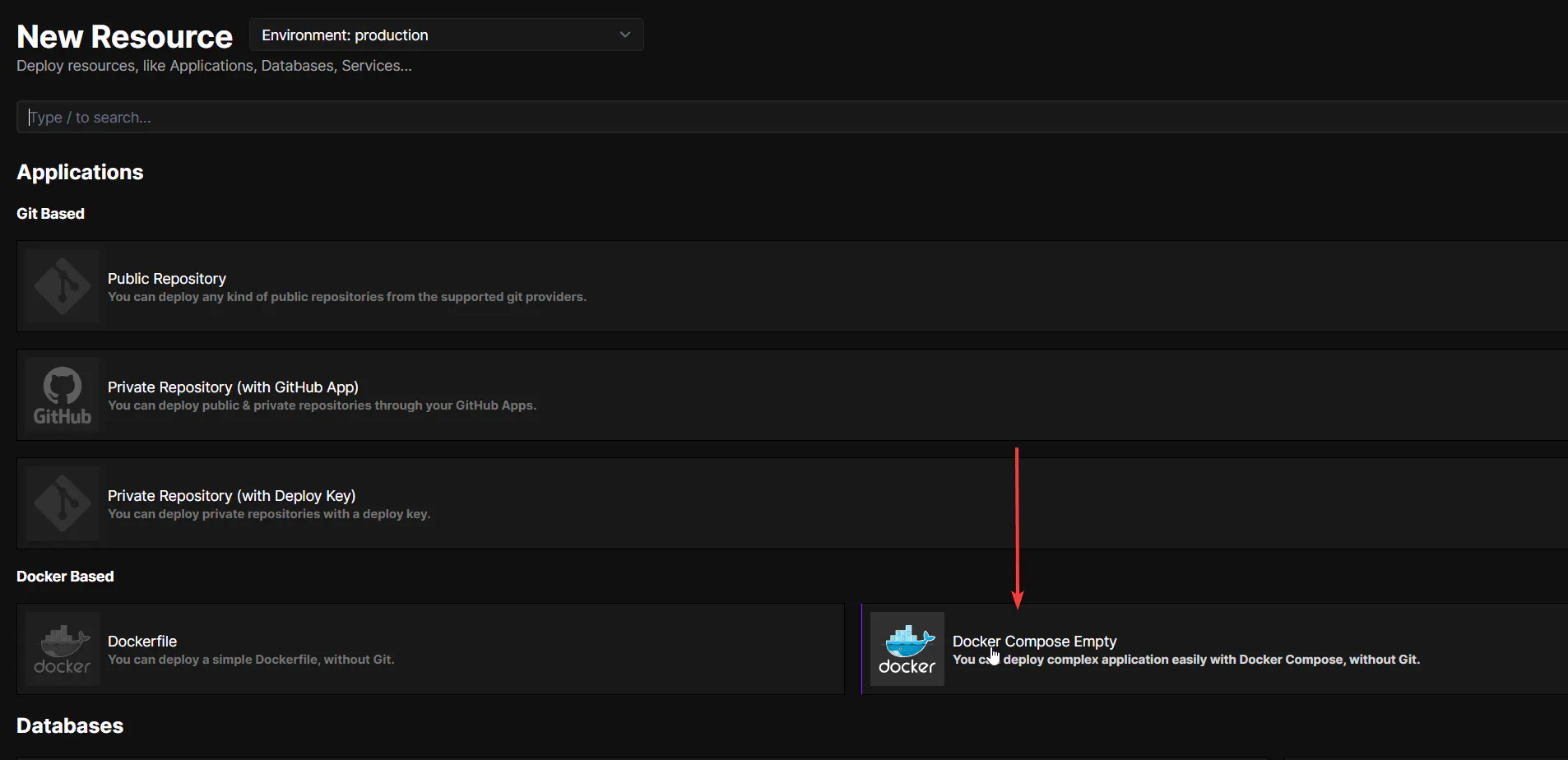
Choose Docker Based > Docker Compose Empty
x-postgres-env: &postgres-env
POSTGRES_USER: $SERVICE_USER_POSTGRES
POSTGRES_PASSWORD: $SERVICE_PASSWORD_POSTGRES
POSTGRES_DB: "${POSTGRES_DB:-trigger}"
POSTGRES_HOST: postgres
x-webapp-env: &webapp-env
LOGIN_ORIGIN: $SERVICE_FQDN_WEBAPP
APP_ORIGIN: $SERVICE_FQDN_WEBAPP
DEV_OTEL_EXPORTER_OTLP_ENDPOINT: "${SERVICE_FQDN_WEBAPP}/otel"
MAGIC_LINK_SECRET: $SERVICE_PASSWORD_32_MAGIC
SESSION_SECRET: $SERVICE_PASSWORD_32_SESSION
ENCRYPTION_KEY: $SERVICE_PASSWORD_32_ENCRYPTION
DATABASE_URL: "postgres://${SERVICE_USER_POSTGRES}:${SERVICE_PASSWORD_POSTGRES}@postgres:5432/${POSTGRES_DB}"
DIRECT_URL: "postgres://${SERVICE_USER_POSTGRES}:${SERVICE_PASSWORD_POSTGRES}@postgres:5432/${POSTGRES_DB}"
RESEND_API_KEY: "${RESEND_API_KEY}"
FROM_EMAIL: "${FROM_EMAIL}"
RUNTIME_PLATFORM: docker-compose
NODE_ENV: production
PORT: 3000
V3_ENABLED: true
x-worker-env: &worker-env
PLATFORM_HOST: webapsp
PLATFORM_WS_PORT: 3000
SECURE_CONNECTION: "false"
OTEL_EXPORTER_OTLP_ENDPOINT: "${SERVICE_FQDN_WEBAPP}/otel"
x-redis-env: &redis-env
REDIS_HOST: redis
REDIS_PORT: 6379
REDIS_TLS_DISABLED: true
x-registry-env: ®istry-env
DEPLOY_REGISTRY_HOST: gcr.io
DEPLOY_REGISTRY_NAMESPACE: trigger-v4
services:
webapp:
image: "ghcr.io/triggerdotdev/trigger.dev:v4-beta"
restart: unless-stopped
environment:
<<: [*webapp-env, *redis-env]
DEPLOY_REGISTRY_HOST: localhost:5000
depends_on:
- postgres
- redis
postgres:
image: "postgres:16"
restart: unless-stopped
volumes:
- "postgres-data:/var/lib/postgresql/data/"
environment:
<<: *postgres-env
healthcheck:
test:
- CMD-SHELL
- "pg_isready -U $${POSTGRES_USER} -d $${POSTGRES_DB}"
interval: 5s
timeout: 20s
retries: 10
redis:
image: "redis:7"
restart: unless-stopped
volumes:
- "redis-data:/data"
environment:
REDIS_HOST: redis
REDIS_PORT: 6379
REDIS_TLS_DISABLED: true
docker-provider:
image: "ghcr.io/triggerdotdev/provider/docker:v4.0.0-v4-beta.22"
restart: unless-stopped
volumes:
- "/var/run/docker.sock:/var/run/docker.sock"
user: root
depends_on:
- webapp
environment:
<<: [*worker-env, *registry-env]
PLATFORM_SECRET: $SERVICE_PASSWORD_64_PROVIDER
coordinator:
image: "ghcr.io/triggerdotdev/coordinator:v4.0.0-v4-beta.22"
restart: unless-stopped
volumes:
- "/var/run/docker.sock:/var/run/docker.sock"
user: root
depends_on:
- webapp
environment:
<<: [*worker-env, *registry-env]
PLATFORM_SECRET: $SERVICE_PASSWORD_64_COORDINATORClick “Save” to apply your changes.
Navigate to the “Environment Variables” section.
Add the following variables:
APP_ORIGIN=$SERVICE_FQDN_WEBAPP ENCRYPTION_KEY=$SERVICE_PASSWORD_32_ENCRYPTION FROM_EMAIL= LOGIN_ORIGIN=$SERVICE_FQDN_WEBAPP MAGIC_LINK_SECRET=$SERVICE_PASSWORD_32_MAGICPLATFORM_SECRET=$SERVICE_PASSWORD_64_PROVIDER POSTGRES_DB=trigger POSTGRES_PASSWORD=$SERVICE_PASSWORD_POSTGRES POSTGRES_USER=$SERVICE_USER_POSTGRES RESEND_API_KEY= SERVICE_FQDN_WEBAPP=https://trigger-v4.sharewordpress.com SERVICE_PASSWORD_32_ENCRYPTION= SERVICE_PASSWORD_32_MAGIC= SERVICE_PASSWORD_32_SESSION= SERVICE_PASSWORD_64_COORDINATOR= SERVICE_PASSWORD_64_PROVIDER= SERVICE_PASSWORD_POSTGRES= SERVICE_USER_POSTGRES= SESSION_SECRET=$SERVICE_PASSWORD_32_SESSION
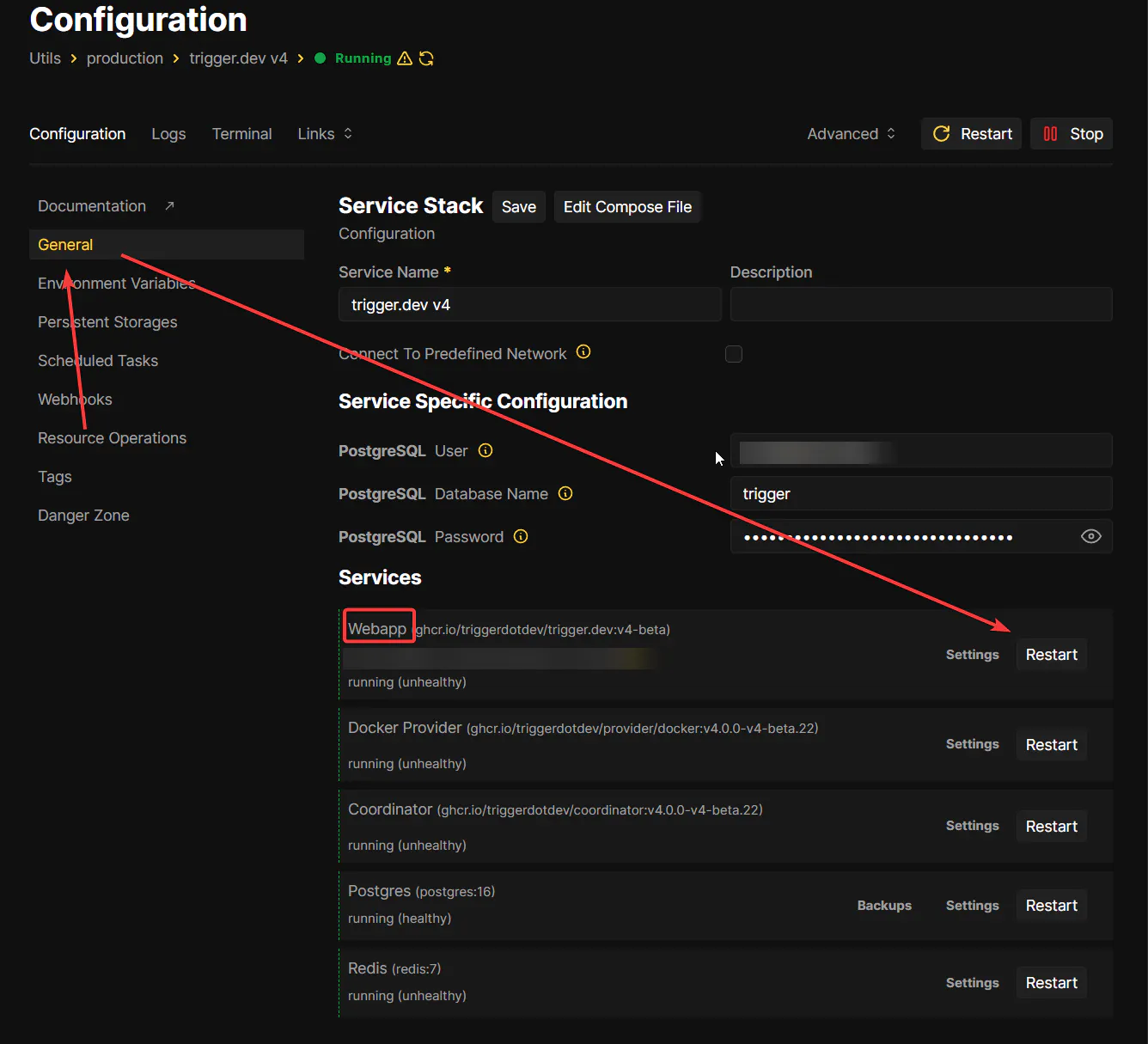
Go back to the “General” tab.
Navigate to “Services” and click the settings icon for the Webapp service.
In the “Domains” field, enter:
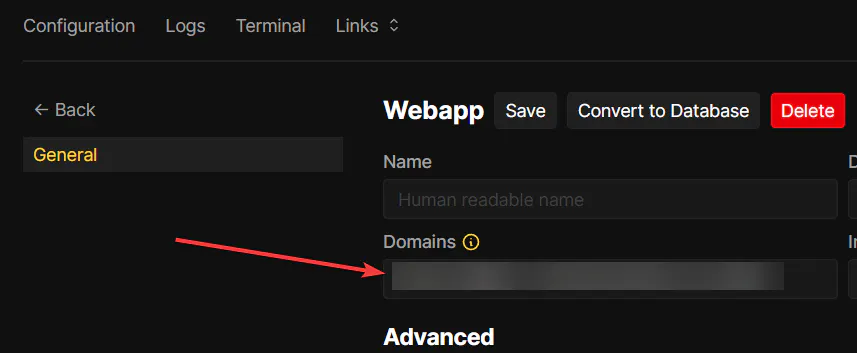
https://trigger-v4.your-domain-you.com:3000Click “Save” to confirm the domain setup.
Start the deployment process from the Coolify interface.
Wait for the deployment to complete.
Congratulations! 🎉 You’ve successfully deployed Trigger.dev v4 on Coolify.
If you found this guide helpful, please leave a like! 👍
Have questions or ran into any issues? Drop a comment below and I’ll be happy to help!
