


Are you a WooCommerce store owner battling forgotten renewals, unexpected churn, or a relentless tide of support tickets related to subscriptions? You're not alone. The silent loss of subscribers due to poor communication is a costly challenge for many businesses.
Here at ShareWordpress, after years of guiding countless subscription businesses, we've uncovered a crucial truth: proactive, transparent communication is the bedrock of successful subscription retention. Store owners who consistently inform subscribers about upcoming renewals don't just see impressive retention rates; they drastically reduce customer complaints and free up valuable support resources.
You don't need to be a coding wizard to master this. With the right strategy and tools, you can transform your customer communication from reactive firefighting to proactive engagement. In this comprehensive guide, we'll walk you through the precise steps to create automated WooCommerce subscription reminder emails so compelling, your customers will genuinely appreciate them.

Subscriptions are the heartbeat of recurring revenue, whether you're selling curated physical boxes, exclusive digital courses, or premium memberships. They promise consistent income and foster deep customer relationships. If you're leveraging the power of WooCommerce Subscriptions (and if you're not, our guide on how to add subscriptions to WooCommerce can help you get started), then automating renewal reminders isn't just a good idea – it's a strategic imperative.
These automated messages, sent before a subscription renews, are not just a courtesy; they are powerful tools that:
In the following sections, we'll demystify the process of setting up these crucial reminder emails using WooCommerce Subscriptions and the robust automation capabilities of FunnelKit. Get ready to transform your subscription strategy!
Here's a roadmap of what we'll cover:
Let's dive in!
To implement truly effective subscription reminder emails, you need a powerful automation tool. Our extensive testing across a multitude of WooCommerce stores has consistently shown FunnelKit Automations to be the premier marketing automation tool for WooCommerce. (For a deeper dive into its capabilities, check out our full FunnelKit Automations review).
FunnelKit provides an intuitive interface to set up robust automated campaigns for everything from abandoned cart recovery and lead nurturing to post-purchase sequences, next-order coupons, and, critically, subscription reminders.
First things first, you'll need to install and activate the FunnelKit Automations Pro plugin. If you're new to installing plugins, our guide on how to install a WordPress plugin has you covered.
Important: The premium FunnelKit Automations Pro plugin builds upon the capabilities of the free FunnelKit Automations plugin, so ensure both are installed.
Once activated, navigate to FunnelKit Automations » Settings in your WordPress dashboard. Locate the 'FunnelKit Automations Pro' field and input your license key, which you can find in your FunnelKit account online.

Simply click 'Activate' after entering the key. With FunnelKit Automations properly configured, you're now ready to unlock a world of WooCommerce automations that increase sales.
To begin building your powerful subscription reminder email sequence, head over to the FunnelKit Automations » Automations (Next-Gen) page within your WordPress dashboard.
Click on the 'Add New Automation' button to get started.

FunnelKit presents a library of pre-built campaigns for common scenarios, from recovering WooCommerce abandoned cart sales to engaging course students. For our specific goal, select 'Start From Scratch'.

Now, give your automation a descriptive name (this is for your internal reference only) and click 'Create'.

This action launches FunnelKit's incredibly intuitive email automation builder. Your next step is to define the trigger – the event that sets this automated workflow in motion. Click on 'Select Trigger'.

From the list of available triggers for your automated workflow in WordPress, navigate to the 'WooCommerce' tab and select 'Subscriptions Before Renewal'.

Click 'Done'. This adds the base trigger to your workflow. To fine-tune it, click on 'Subscriptions Before Renewal' within the editor.

Here, you'll define the critical timing of your reminder. How many days before renewal should the first email go out? Typically, you'd send one initial reminder several days out (e.g., 5-7 days), with potential follow-ups closer to the date if needed (we'll cover follow-ups in Step 4).
Enter the desired number of days into the 'Days before subscription renewal' field.

Next, specify a preferred time for the email to be sent. Optimal delivery times vary by audience; aim for when your subscribers are most likely to actively check their inboxes. Leveraging insights from Google Analytics in WordPress can help you pinpoint these peak engagement hours and even understand your customers' time zones.

Remember, continuous optimization is key. You can always set up A/B split testing down the line, trying different send times to see what yields the best open and conversion rates. By constantly monitoring and refining your custom WooCommerce emails, you'll consistently improve engagement.
For this initial reminder, select 'Once' since we'll manage follow-ups separately. When everything looks right, hit 'Save'.

Now, it's time to craft the email that your subscribers will receive. Click the '+' button after your trigger and select 'Action'.

In the pop-up window, choose 'Send Email' and then click 'Done'.

This brings you to the email composer where you'll define the subject line, preview text, and the email body. This is where personalization truly shines. FunnelKit's merge tags allow you to dynamically insert subscriber-specific information, making each email feel uniquely tailored.
To add a merge tag, simply click the '{{.}}' icon next to the field you're working on.

A pop-up will display all available merge tags. If you see a 'Copy' icon next to a tag (like for the customer's name or subscription details), click it to copy the tag, then paste it into your subject or preview text.

You can combine merge tags with static text for a powerful, personalized message. For instance, a subject line like "Heads Up, {{contact.first_name}}! Your Subscription Renews Soon" grabs immediate attention.

Some merge tags will have a 'Settings' icon instead of 'Copy'. This is for setting a "fallback" value – text that FunnelKit will use if the specific customer data isn't available. For example, for 'Contact First Name', you might set a fallback like "Valued Customer".

Click the 'Settings' icon, type your fallback text, then click 'Copy' and paste it into your email.

Once your subject and preview text are perfected, scroll down to the email body editor. Here, you can type your content, add more dynamic tags via the 'Merge Tags' button, and utilize standard text formatting options (like adding links, changing font sizes, etc.).

Always take advantage of the 'Show Preview' button to see how your email will look before saving.

When you're satisfied with your masterpiece, click 'Save & Close'.
A single reminder email is good, but a well-timed sequence of follow-ups can significantly improve engagement and reduce churn. To add another strategic touchpoint, you'll first insert a delay.
Click the '+' icon after your first email action and select 'Delay'.

From the dropdown, choose your desired time unit (Days or Weeks are most common for reminders) and input the specific value (e.g., "1 Week" or "3 Days").

For precision, you can also specify an exact time for the follow-up email to be sent by checking 'Delay until a specific time of day'.

By default, FunnelKit respects your WordPress timezone settings, but for truly global audiences, you can select 'In Contact Timezone' to send the email based on the subscriber's local time – a key detail for optimal open rates!

Click 'Save' when your delay is configured. Now, just as before, click the '+' icon after the delay and select 'Action', then 'Send Email'.


Compose this follow-up email with a slightly different tone or emphasis, perhaps offering a different call to action or a final warning. Remember to leverage merge tags for personalization.

You can repeat these steps to add as many strategic delays and follow-up emails as your subscription model requires.
Once your automation workflow is complete, toggle the 'Inactive' slider to 'Active'.

Congratulations! Your online store will now automatically send intelligent subscription reminder emails, nurturing your customer base and fostering lasting loyalty.
Setting up automation is just the first step. To ensure your subscription reminder emails are truly effective and delivering maximum impact, you absolutely must track their performance.
By tracking your WordPress emails, you gain invaluable insights:
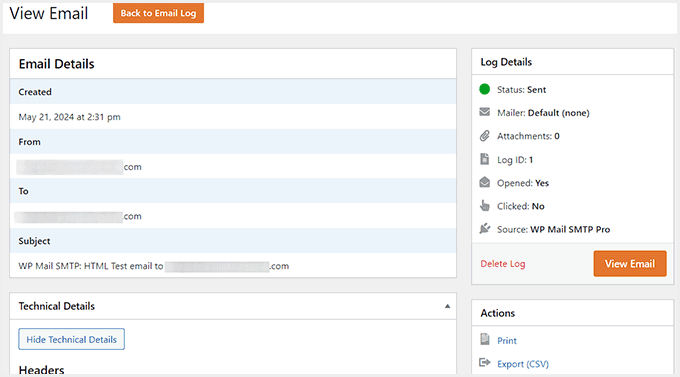
Email tracking ensures your critical messages—from reminder emails to order confirmations and membership updates—are not just sent, but received and engaged with. This deeper understanding allows you to fine-tune your messaging, timing, and overall strategy, leading to a superior customer experience and a more robust, profitable subscription business.
For a complete guide, refer to our step-by-step instructions on how to setup WordPress email tracking.
Implementing smart WooCommerce subscription reminder emails is one of the most impactful steps you can take to foster customer loyalty, minimize churn, and cement a consistent revenue stream for your business. With FunnelKit Automations, this powerful strategy is entirely within your reach, regardless of your technical expertise.
By proactively communicating, you're not just sending emails; you're building trust and empowering your customers, leading to a healthier, more sustainable subscription business. Don't just sell subscriptions; retain them with precision and care.
Ready to further optimize your WooCommerce store? Discover how to create a WooCommerce popup to increase sales or explore more powerful ways to recover abandoned cart sales.
If this article helped you, consider subscribing to our YouTube Channel for more essential WordPress video tutorials. You can also connect with us on Twitter and Facebook for the latest tips and insights.
