


Imagine logging into your WordPress dashboard, ready to update content or check analytics, only to discover a crucial plugin has vanished. No error message, no warning. Just gone. The heart-stopping moment when your contact form disappears, your e-commerce functionality goes offline, or your beautifully crafted slider collapses. This isn't just an inconvenience; it’s a direct threat to your website's functionality and, by extension, your business.
While a disappearing plugin can feel like a digital ghost in the machine, the culprits are often surprisingly common – from overlooked user permissions to stubborn plugin conflicts, or even deeper issues like caching woes and security breaches.
Don't let a vanishing plugin derail your day or damage your online presence. This comprehensive guide will arm you with the precise steps to diagnose and restore your missing WordPress plugins, ensuring your site operations resume smoothly and securely. Let's dig in and bring your WordPress dashboard back to full health.
When a plugin stealthily vanishes from your WordPress backend, it’s more than just a nuisance; it can silently cripple vital website functions. You might not notice until a core feature breaks – a contact form stops collecting leads, a premium slider disappears, or a critical payment gateway goes offline. Understanding the underlying reasons is the first step toward a swift and effective resolution. We’ve identified the most frequent culprits behind vanishing plugins:
Fortunately, most disappearing plugin issues are resolvable with a systematic approach. We'll guide you through each potential solution, helping you pinpoint the exact cause and safely restore your site's functionality. Here’s a quick overview of the essential steps we’ll cover:
One of the simplest yet most overlooked causes for a missing 'Plugins' menu or specific plugin access is your current user role. WordPress implements a robust user role and permission system to control who can do what on your site. For instance, only users with 'Administrator' capabilities can typically install, activate, and manage plugins. This setup is particularly prevalent in multi-author or Multisite Network environments.
Action Step: Navigate to Users » All Users in your WordPress admin panel. Examine the 'Role' column for your user account.
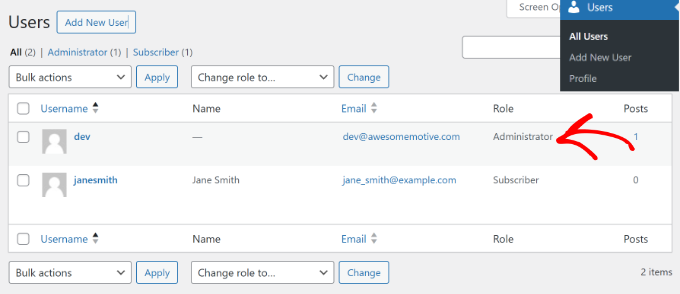
If your role is anything other than 'Administrator' – say, 'Editor' or 'Author' – this is likely why the plugin management options are absent. If you're not the primary administrator, reach out to your site's admin to request the appropriate permissions. If you are the administrator and your role appears correct, then the root cause lies elsewhere, and we need to explore further troubleshooting steps.
Plugin conflicts are a classic WordPress troubleshooting challenge. When two or more plugins (or a plugin and your active theme, or even WordPress core) clash, the symptoms can range from minor glitches to a completely inaccessible plugin section. The definitive way to identify a conflict is through a systematic deactivation process.
Action Step (If You Can Access Your Admin Dashboard):
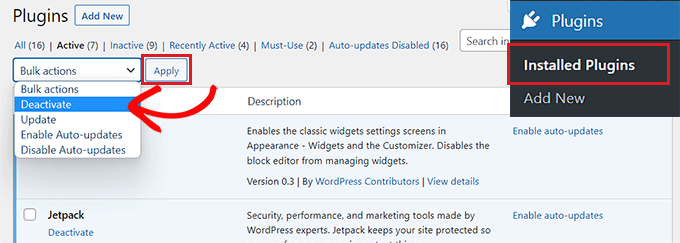
Once all plugins are deactivated, begin reactivating them one by one. After each activation, check your WordPress dashboard to see if the missing plugin reappears or if the original issue returns. The plugin you just activated before the issue resurfaced is your likely culprit.
Action Step (If You're Locked Out of Your WordPress Admin):
If the conflict prevents you from accessing your dashboard entirely, don't despair. You can manually deactivate all plugins using an FTP client or your web host's File Manager. This method involves renaming your plugins folder, forcing WordPress to deactivate all installed plugins. For detailed instructions, refer to our guide on how to deactivate all plugins when not able to access wp-admin. Once deactivated, you can then proceed with the one-by-one re-activation process via the admin dashboard.
Caching, while beneficial for website speed, can sometimes cause information to become stale, leading to outdated views of your WordPress dashboard. This can manifest as a plugin appearing to be 'missing' when, in reality, your browser or server is just displaying an older version of your site.
Action Step 1: Clear Your Browser Cache Your web browser (Chrome, Firefox, Safari, Edge) stores temporary files (browser cache) from websites to load them faster on subsequent visits. An outdated cached version of your WordPress dashboard could be preventing the 'missing' plugin from rendering correctly.
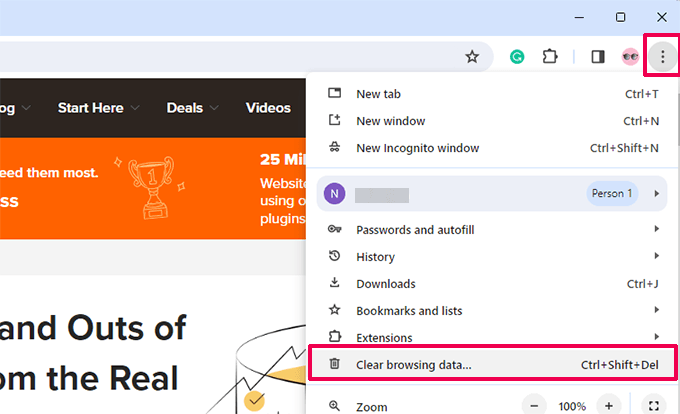
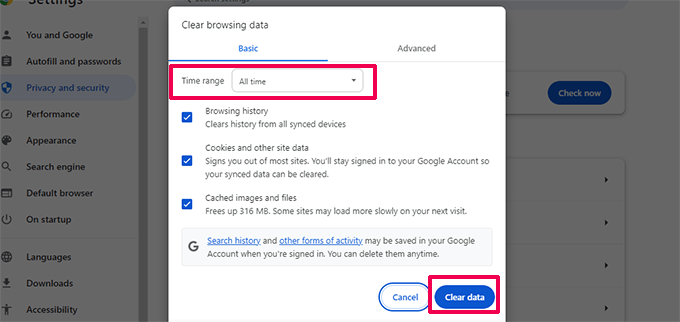
After clearing, log back into your WordPress site and check your Plugins page. For instructions on other browsers, consult our comprehensive guide on how to clear cache in all major browsers.
Action Step 2: Clear Your WordPress Site Cache Beyond your browser, your WordPress site itself likely employs caching to enhance performance. Popular caching plugins like WP Rocket or hosting-level caching (offered by providers like Bluehost or WP Engine) store static versions of your pages. If this site cache is outdated, it might not reflect the actual state of your installed plugins.
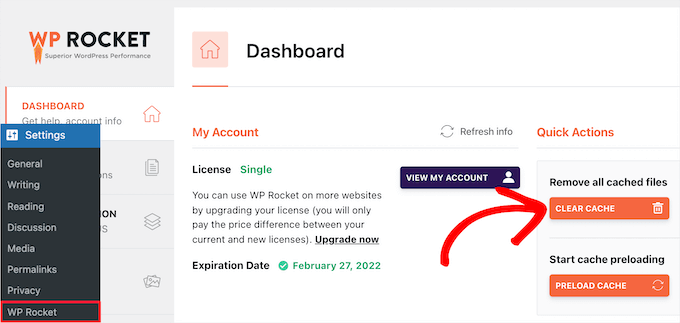
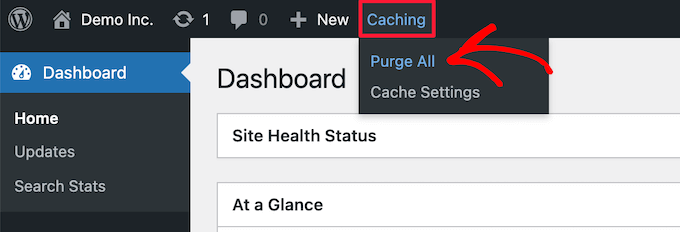
For a more in-depth understanding and various methods to clear your site cache, refer to our guide on how to clear cache in WordPress.
While less common, the persistent disappearance of plugins can be a red flag for a more severe underlying issue: a compromised website. Malicious code or malware injection can lead to plugins being forcefully removed, hidden, or corrupted as part of an attack to gain control, steal data, or simply disrupt your operations.
Action Step: It’s crucial to perform a thorough security scan of your WordPress site if the previous steps haven't resolved the issue. There are numerous reputable WordPress security scanners available that can detect hidden malware, suspicious files, and vulnerabilities.
For a detailed walkthrough on how to initiate and interpret a security scan, refer to our guide on how to scan your WordPress site for potentially malicious code.
If the scan uncovers any malicious code or malware, use a robust security plugin (or consult an expert) to clean and harden your site. Addressing the security breach is paramount; once your site is secured, your plugins should re-stabilize and become visible again.
Sometimes, despite diligent troubleshooting, a WordPress issue persists, or the complexity simply overwhelms. If you're experiencing recurring plugin disappearance, deep-seated conflicts, or suspect a security breach you can't handle alone, bringing in professional WordPress experts can be the most efficient and stress-free solution.
Are you tired of these disruptive errors eating into your valuable time? ShareWordpress WordPress Maintenance and Support offers seasoned expertise to manage and maintain your website, ensuring smooth operation and peace of mind. Our team, backed by over 16 years of experience and having assisted over 100,000 WordPress users, specializes in resolving complex issues.
With our maintenance services, you gain access to 24/7 support, continuous uptime monitoring, thorough security checks, and expert troubleshooting for all WordPress errors. Furthermore, if your missing plugins are indeed a symptom of a hack, our dedicated Hacked Site Repair service meticulously removes malicious code, corrupted files, and malware, restoring your site's integrity swiftly.
Here are some quick answers to common questions we hear about plugins disappearing from the WordPress dashboard:
1. Can automatic updates cause a plugin to disappear?
Yes, but it's rare. Sometimes a plugin update fails or becomes incompatible with your current WordPress version. If that happens, the plugin may deactivate itself or stop appearing in the dashboard.
2. Will reinstalling the plugin bring it back?
It can, as long as the issue isn’t related to user permissions or malware. Reinstalling helps if the plugin files were corrupted or deleted during an update or conflict.
3. Can my hosting provider hide or remove plugins?
Some managed WordPress hosts automatically disable plugins that are known to cause performance or security issues. You can check with your hosting provider’s support team if you’re unsure.
4. Is it safe to delete and reinstall a plugin?
In most cases, yes. But deleting a plugin might also remove its settings or data, depending on how it was built. Before deleting, check the plugin’s documentation or take a full site backup just to be safe.
The sudden disappearance of WordPress plugins can be a perplexing and frustrating experience, but as this guide has shown, it's rarely an unsolvable mystery. By systematically checking user permissions, isolating plugin conflicts, clearing caches, and conducting security audits, you equip yourself with the knowledge to diagnose and rectify most issues.
Remember, a secure and well-maintained WordPress site is your best defense against such disruptions. Proactive measures, regular backups, and a keen understanding of your site's ecosystem are invaluable.
Don't let a vanishing plugin disrupt your online presence again. Take these steps, empower yourself with solutions, and ensure your WordPress site remains robust and fully functional.
To further strengthen your WordPress expertise and prevent future headaches, explore these essential guides and resources:
We trust this detailed article has provided invaluable assistance in resolving disappearing WordPress plugins. For additional critical troubleshooting solutions, consider our guides on how to fix the ‘your connection is not private’ error and our ultimate guide to WordPress maintenance.
If this article proved helpful, stay connected and informed! Subscribe to our YouTube Channel for expert WordPress video tutorials and join our vibrant communities on Twitter and Facebook. Your successful WordPress journey is our priority!
